progress query The progress query helps you keep track of many projects. When you shut down your computer in the evening, Xpert-Timer automatically detects this and queries you about the project progress in percent for each project you worked on that day. This gives you an overview of how far your projects have progressed. This query can be enabled or disabled centrally in the configuration in the "Users" area under the "Projects" tab.

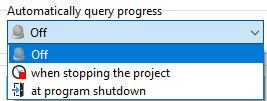
You can also set the automatic progress query in the project properties of the respective project in the "General" tab. The "Automatic progress query" option allows you to automatically activate the project progress query when you stop the time measurement for a project or exit Xpert-Timer.

You use the progress information to indicate the estimated percentage of the project that you have already completed. This percentage only becomes meaningful once you have entered an estimated end time for the project in the project properties. You can then compare your estimated progress with the target progress (calculated from the estimated and already used time).
The display in the Project Manager is always the percentage that you enter manually:

If you have estimated the project duration in the project properties, you can display the time already used in relation to your estimate as a percentage in the Project Manager. The column you need to display in the Project Manager is called "Time used %" (time used as a percentage). From 90% time used, the bar is displayed in orange, and from 95% time used, it is red.

The "Time Consumption %" column allows you to keep track of projects that are running behind schedule. In our example no. 3, you can see that more than 140% of the estimated time of 10 hours has already been exceeded. In fact, the employees have indicated that only 19% of the project has been completed. So something is going wrong here.
Our example no. 2, on the other hand, looks very good. It is 100% complete and only took 82% of the estimated time.
Example No. 1, the "Program Planning" project, is also right on target with 35 to 50 estimated hours.
You can sort the project manager by the Time Consumption % column. This will give you only those projects that have specified an estimated time frame. Projects without estimated hours are not displayed. You can also group by time consumption.