In the reporting module, you can work with various filter and grouping options. Numerous combinations are available for summarizing and grouping your data.

|
Important to know |
|---|---|
Above your results list, you can see which data you have filtered in the "Filter" line. In our example, you can see all the times recorded by the employee Michaela Meier selected on the left-hand side, summarized by project (S: Project) and grouped by customer (G: Customer). Below the graphic buttons, you can also see the selected options again (S: Project and G: Customer). If you want to apply the filter to all employees, select "All employees" on the left-hand side. |
|

To reset all filters, you can use the "X" to delete the filters:

Inactive users/employees:

After a few years, some employees may have been set to "Inactive" status in order to release the corresponding license for another employee. To include these inactive employees in the reporting, you must display them in the list of employees. You can do this by right-clicking in the employee area.
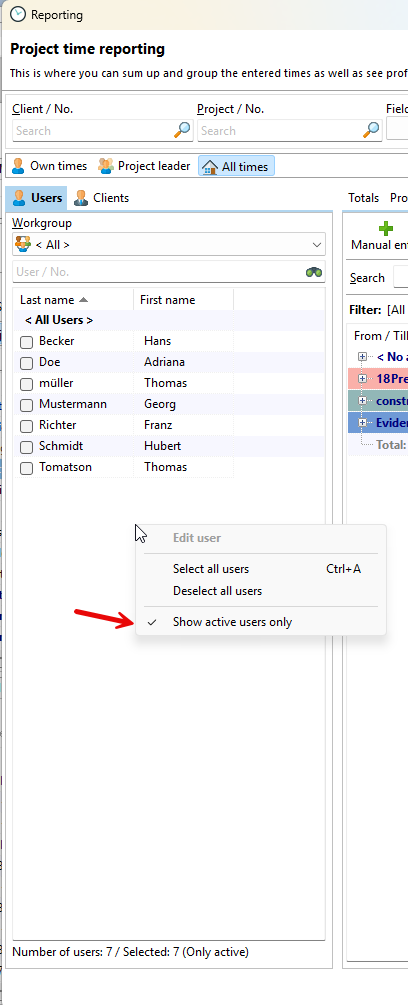
|
Use the Views button to save your desired column layout and the selected filter and grouping settings. This allows you to easily manage multiple list views and retrieve them at the touch of a button. |
|---|
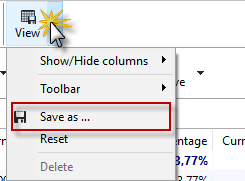

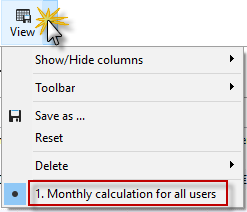
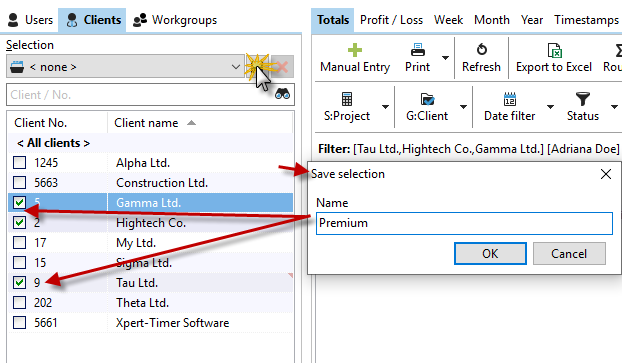
The "Customers" tab allows you to filter your projects by one, several, or all customers. To select a customer, check the corresponding checkbox. Alternatively, you can use the search field to search for a customer, check the box, and then clear the search field again. The previously set checkmarks for the other customers will remain. This allows you to filter the desired customers from a long list of customers.
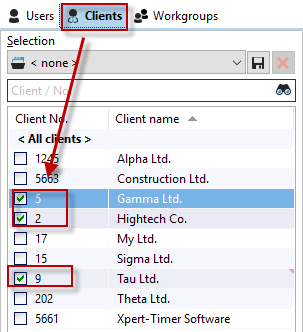
You can save these selected customers as a selection. To do this, select a few customers, then click on the "Save" button and assign a meaningful name. Your selection will then be available as a filter in the drop-down field.
You can reset filter and grouping settings by clicking on the "View" button and selecting the "Reset" option.

By right-clicking on the toolbar of your evaluation, you can merge the individual rows of the buttons into one row. You can also show or hide the labels.

|
Note |
|---|---|
Please also read the following chapters to familiarize yourself with the evaluation module: |
|