SERVER
The following files must be located in the SyncServer program directory (OpenSSL)
1.ssleay32.dll
2.libeay32.dll
In addition, a certificate and a key file are required in the program directory.
1.xtsync_certificate.crt
2.xtsync_privatekey.pem
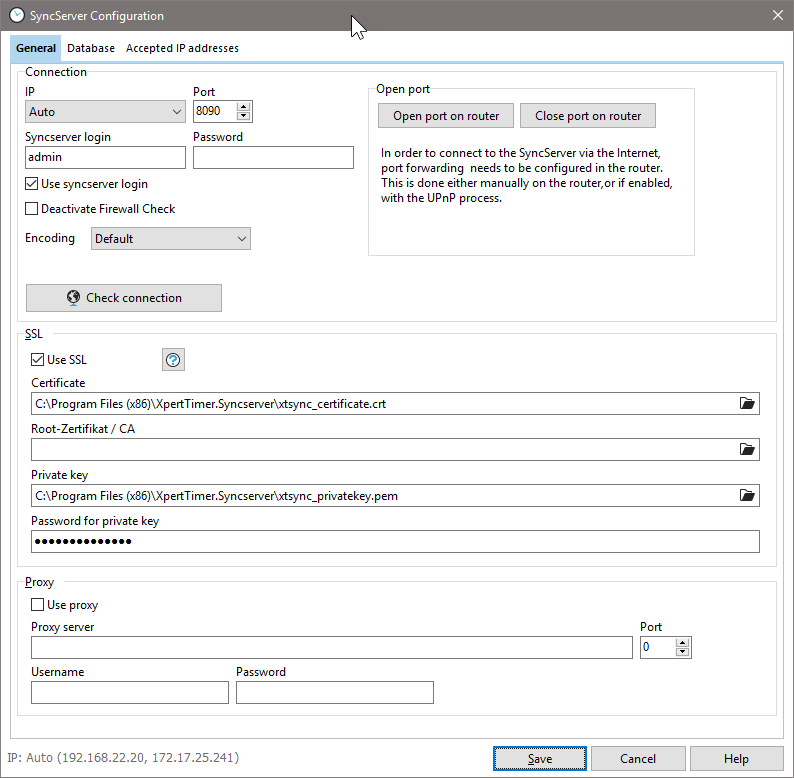
The following lines must be added to xtwebserver.ini. This can also be done conveniently using the dialog below.
[Certificate]
SCERT=xtsync_certificate.crt
RSAKEY=xtsync_privatekey.pem
ROOTCERT=xtsync_certificate.crt
PASSWORD=kBorkR9Di4UtjRcpjaG
NOTE: A certificate check is not performed when connecting via a self-signed SSL certificate. The SSL connection is only used for encrypted transmission. Therefore, it is not necessary to create your own certificate.
The "Use SSL" option must be set in the SyncServer configuration.
The password for the private key file is: xtsyncpassword
CLIENT (WINDOWS)
The following files must be located in the client's program directory (xperttimer.exe) (OpenSSL)
1.ssleay32.dll
2.libeay32.dll
On the client, the "Use SSL" option must be set in the connection settings for the SyncServer.
If an optional cross-check of the certificate is to be performed, the following lines must be entered in xperttimer.ini. You can also copy these lines from xtwebserver.ini.
[Certificate]
SCERT=xtsync_certificate.crt
RSAKEY=xtsync_privatekey.pem
ROOTCERT=xtsync_certificate.crt
PASSWORD=kBorkR9Di4UtjRcpjaG
CLIENT (ANDROID)
On the mobile device, the "Use SSL" option must be set in the connection settings for the SyncServer.