Configuration - General
|
Set password |
|---|---|
In this dialog box, you can set a user name and password for your XTSyncServer. You must enter this exact user name and password on your mobile device to connect to the database via the XTSyncServer. |
|

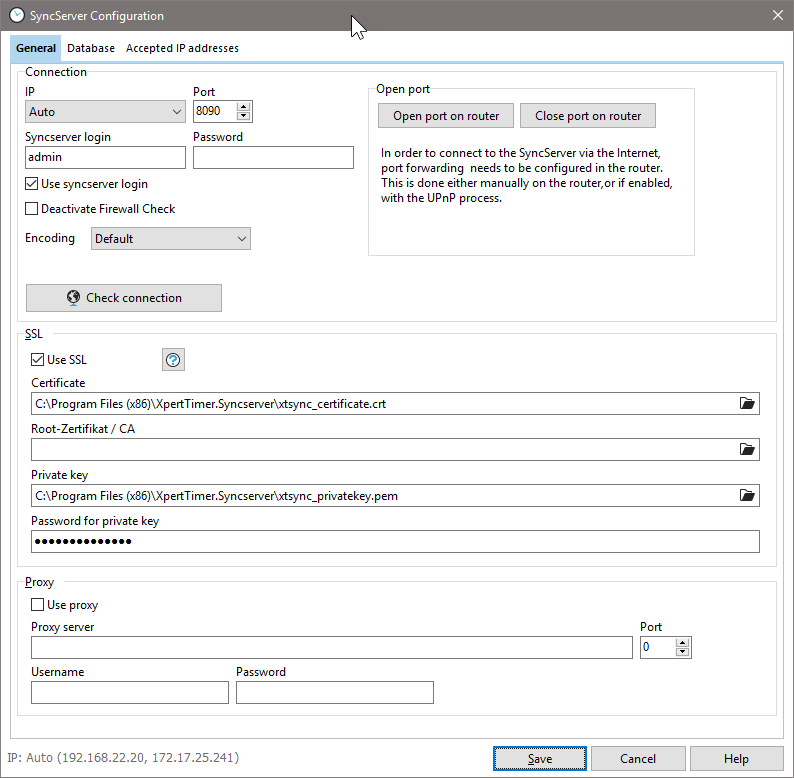
In the "General" tab, you can set the port and password for your XTSyncServer. If you want to access your data via the Internet, you may need to open the port you specified for the SyncServer on your router. To do this, the configuration dialog box provides you with the option of automatically opening the port via the UPnP protocol and forwarding it to your computer by clicking the "Open router port" button. Please note that the UPnP functionality must be enabled on your router. If this is not the case, error messages may occur, e.g., "Interface is not available." In this case, you must manually enable the port on the router via "Port Forwarding." Please refer to your router's manual for more information.
If you uncheck "Use SyncServerlogin," you will not need to log in with a username and password. For security reasons, this checkbox should always be selected. Choose a secure password.
Although the XTSyncServer should be able to establish its connection through the firewall without any problems, issues can sometimes arise. In this case, check the box "Disable firewall check" to test and see if the connection is then established. This will let you know that you need to make further adjustments to the firewall settings.
The data from the Android device's database can be transferred using SSL encryption. Details can be found in the "SSL Setup" chapter.
The connection via a proxy server only works if it is an in-house proxy. Connection via a web proxy is not possible.
To check the connection, enter the external IP address through which your server can be accessed from outside. This allows you to check whether the connection is correctly established through your router and firewall to your server or to the XTSyncServer.exe / XTSyncServer service.
You should only activate the debug log file to identify errors during synchronization.
Database connection
In the "Database" tab, you can establish the connection between the Xpert-Timer database and the XTSyncServer. To do this, use the connection wizard. Please note that the connection to an MS-SQL server can only be established using a user name and password. It is not possible to log in via Windows authentication when running the service.

Test the connection to ensure that it is established.

Permitted IP addresses
If you want to restrict access via the XTSyncServer to specific IP addresses, you can do so here. Placeholder characters such as "*" or "?" are supported.
e.g., 127.0.0.1 or 192.168.1.*
