After activating the Outlook/Thunderbird module, the Outlook buttons are visible to the employee in the task list.
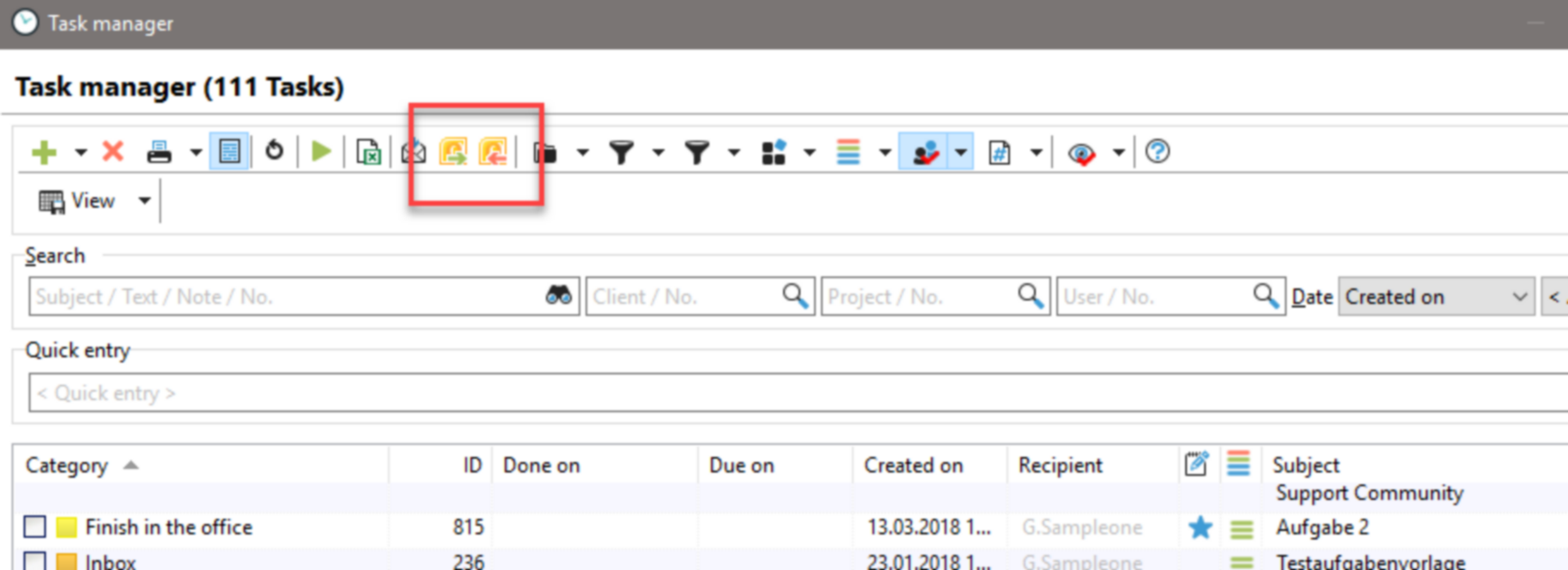
This allows you to either export emails to Outlook and Thunderbird or import emails into the task list. Please refer to the chapter "Outlook/Thunderbird and Tasks" in this manual.
You can also drag and drop emails into the task list. This is recommended if you only want to create individual emails as tasks.
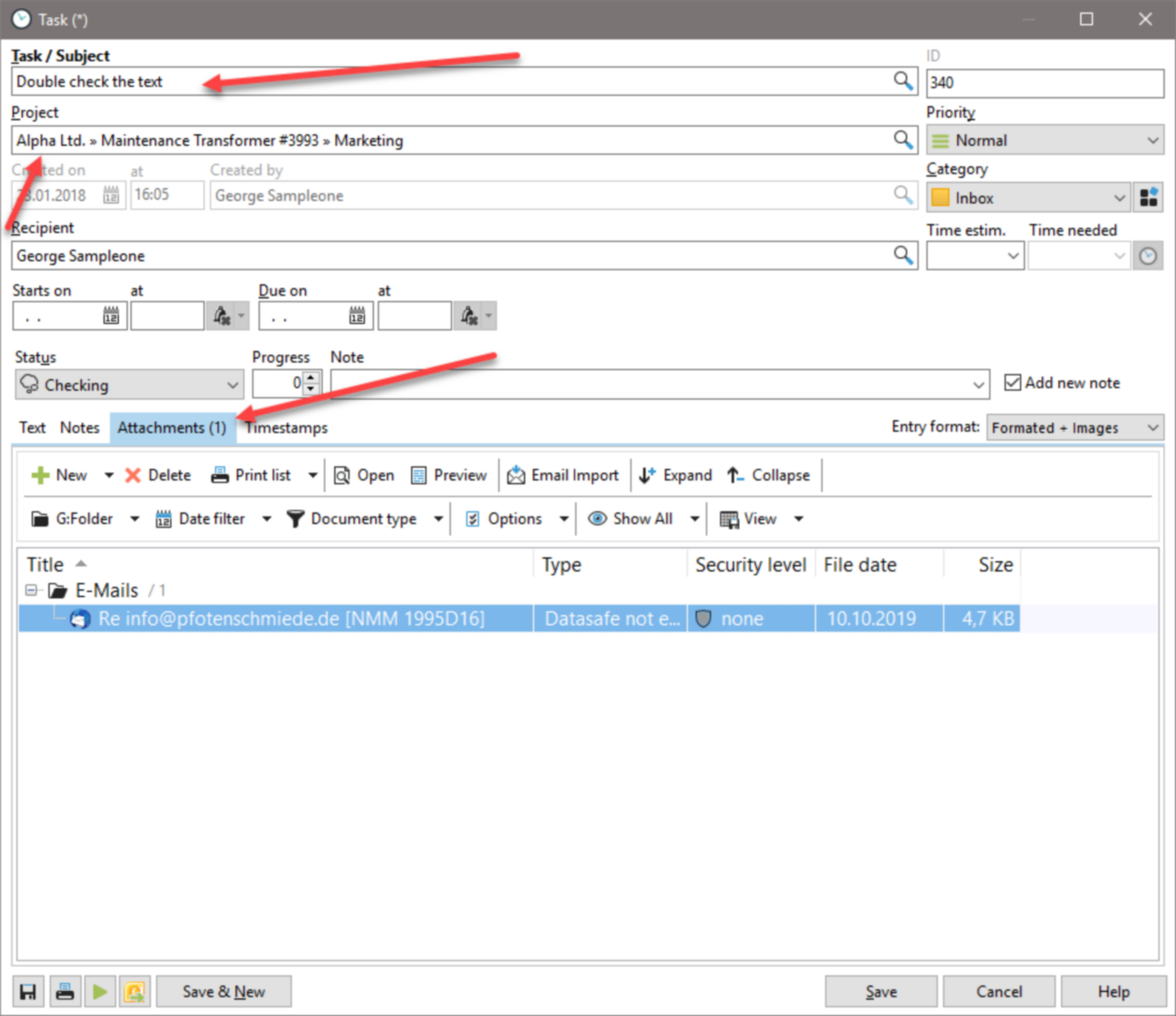
The moment you drag and drop an email onto the task list, the "New Task" dialog opens. There you will see that the email has been assigned to a project and the subject of the email now appears as the task subject. In addition, the email is saved as an .msg file in the data safe and thus in the document management system.
If you do not want to create the email as a task, but only want to save it for the project, drop the email in the document tab of the project. This opens the "Add Document" dialog box and you can save the Outlook email for the project.
Emails are always saved as the file type "Data safe not editable." You cannot change this setting. Make all other settings, e.g., the security level to control visibility or assign search terms for the search. Save the document. You have now stored the email in the Xpert-Timer system.