Important: By default, an administrator user (XTADMIN) is supplied with the database. This is used to set up your database the first time. If the system does not log you in automatically when you log in for the first time, log in with the username "XTADMIN" and password "xtadmin." After you have connected for the first time, you should change the password for the XTADMIN user to prevent unauthorized access to the database.

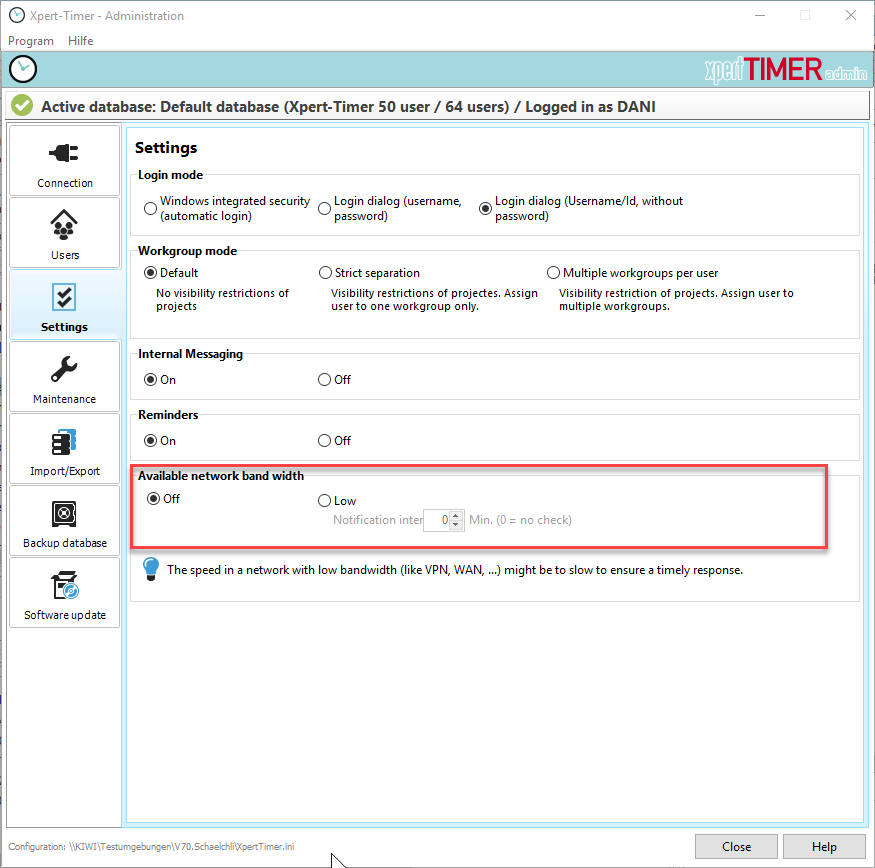
You can use the login mode to specify how you want to log in to Xpert-Timer.
Windows login
The easiest option is to log in using your Windows username. No password is required. Even if several employees access XpertTimer.exe at the same time, the employee is recognized by their Windows username.
Login dialog
The login dialog has the advantage that different people can log in to the time system on a computer under one Windows user ID, but on the other hand, an additional login step is necessary each time.

You can see the name you are logged in to the system with in the status bar of the Project Manager.
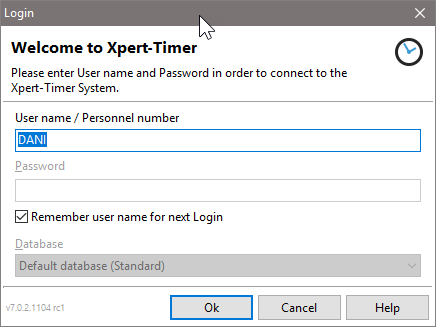
If you want to work with the login dialog, you will be asked which user and password you want to log in with each time you start Xpert-Timer.
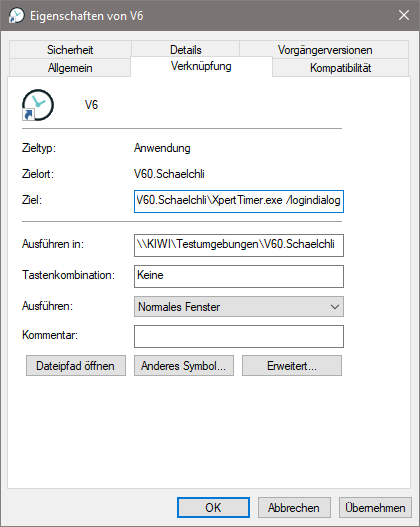
If you only want to log in individual employees via the login dialog and others via Windows authentication, you can do this using a parameter in the shortcut properties. Enter the following addition in the target field: /logindialog
This will automatically open the login dialog when you start the shortcut. Alternatively, you can also open the login dialog by holding down the Shift key when starting Xpert-Timer.
Workgroups
If your company has several departments, you can limit visibility in Xpert-Timer using workgroups.
Choose from:
Standard: No division of visibility, but still with the option of adding employees to workgroups and filtering the evaluation according to the respective workgroups.
Strict separation: Each employee can only be assigned to one workgroup. A member of a workgroup never sees the entries of another group.
Cross-workgroup: An employee can be active in multiple workgroups. This means they can also see the projects and customers of other workgroups.
Read more about workgroups in the "Workgroups" chapter.

Internal notifications
Within Xpert-Timer, employees receive messages when, for example, a new project or task has been assigned to them. These messages appear in a small dialog box in the Windows tray bar. To save bandwidth, e.g., in the case of a slow network connection, you can disable these internal notifications here.
In the configuration file xperttimer.ini, you can also set the interval for checking for new messages. The default setting is 5 seconds.

Reminders
Reminders are small messages that are not stored in your database. They are simply used to remind you of small things. You can disable these reminders centrally for the entire system here.

Network bandwidth
If your network speed is low, e.g., when using VPN, it may be helpful to set this option to "Low." Xpert-Timer will then limit notifications and messages to a minimum. Please also set the query interval.